
How to make a personal text GIF in the browser
Published by Optimalium LLC · How we check our work · Report a correction
Create a short animated greeting with a readable message, a colour palette and a real GIF download. Follow a complete worked example.
What should you write first?
Decide what the recipient should understand before choosing a colour. For a thank-you, “Thanks, Sam” is more direct than an elaborate sentence squeezed into the main line. Put the specific reason in the accompanying chat message: “Thanks for checking the timetable before we left.” The image adds tone; it need not carry every detail.
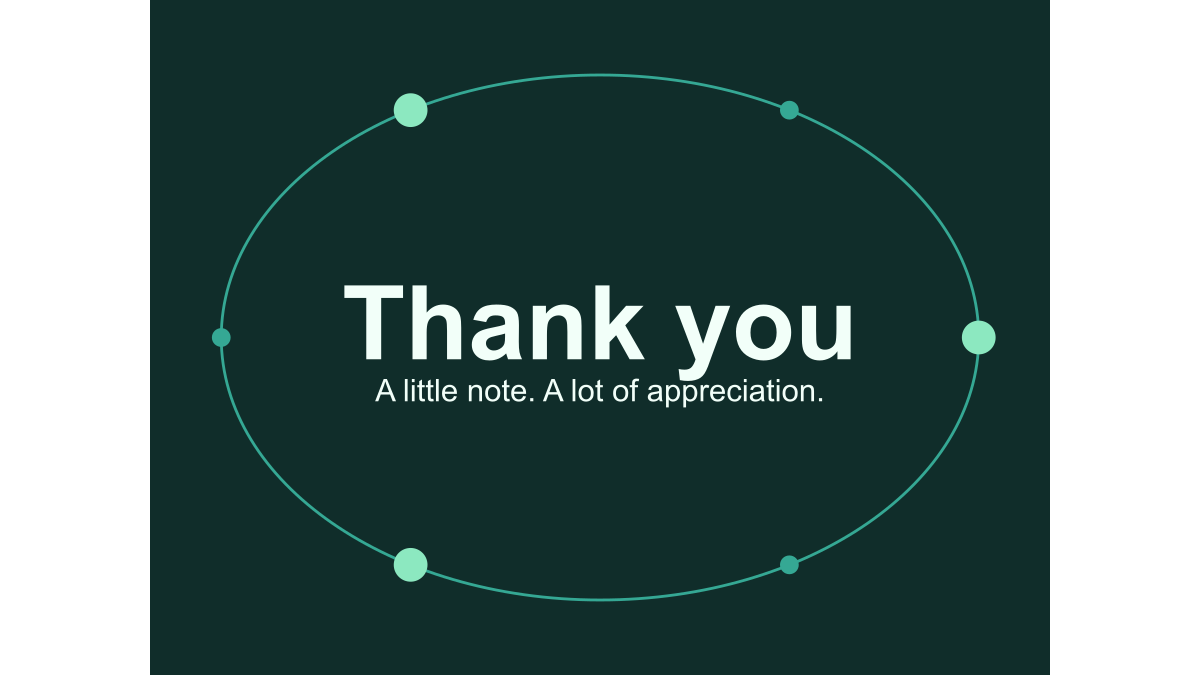
Open the GIF studio. The starting card says Thank you. Change Main message to “Thanks, Sam” and A little more to say to “You made the day easier.” Both lines fit the tool’s limits. The main line accepts up to 28 characters and the subtitle up to 42; an emoji can count as more than one browser input unit. Keeping comfortably below the limit is easier than trying to fill every position.
Which movement suits the words?
Orbit frames the text with moving dots. Confetti gives a celebratory feel without moving the message itself. Wave places most movement below the words. These are three distinct drawing patterns, not imported video clips. For this thank-you example, keep Orbit and choose Midnight mint for a dark background.
Press Play preview and watch at least one complete loop. Playback repeats until you stop it or leave the tab. The text stays fixed while the decoration moves. Pause preview holds the current frame. Use Previous frame, Next frame or the timeline slider to inspect any of the 24 source frames. Editing any setting also stops playback, which makes it easier to compare layouts without a constantly moving target.
How do you create an actual file?
Choose Landscape and select 480 × 360 for the first export, then press Create GIF file. A progress bar tracks the export below the buttons; Cancel export stops it without losing your message. When encoding finishes, a separate Download your GIF link appears in the same area with dimensions, duration and measured file size. Until that link appears, the preview is only a preview, not a saved file.
The maker measures the width of your words in the browser before drawing them. Wide letters can need more space than narrow ones even when the character count is identical. It reduces the font size when a line would cross the text area, and uses that layout for both the preview and the saved file. Fitting inside the card does not mean the words are large enough to read: if the small-text hint appears, shorten the message or use the larger export.
Save the download and open it in a viewer that supports animated GIFs. Check spelling, the subtitle and one full repeat. Device fonts can change letter shapes, so an export made on another machine may not be pixel-identical. If the file is too large, choose 240 × 180 and export again; see the file-size explanation for the trade-off.
What happens if you change your mind?
For someone who prefers a still image, choose Create still PNG. It saves the first frame at the selected dimensions and shows a Download your PNG link with the measured size. It does not capture a moving frame halfway through playback. The PNG contains no animation; use it as an image attachment and put the meaning in your text message too.
Both export buttons require a main message. If you remove the words or enter only spaces, the tool returns focus to that field and asks you to write a message. The subtitle is optional. Check the preview for unsupported characters or text that looks too small before exporting.
Changing the text, palette, movement or dimensions clears the old download link. Export again so the file matches your latest settings. Cancel export stops the current encoding task and leaves your words in the form. Closing or reloading the page loses the draft: there is no account, cloud save or browser draft storage.
This tool makes short text-based greetings. It does not turn photographs into GIFs, cut videos, translate messages or add sound. If you only need the original Thank you card, its download page includes the finished file and a static alternative. Before sending, use the sharing checklist to check what the destination app actually displays.
Try the new card shapes
Text layout offers a centered line, a two-line greeting and a left-aligned postcard. Two-line greeting splits between words near the middle; one long word remains a single line. Lettering changes between sans serif and serif. Font availability can affect the result, so check a saved file on your own device.
Card shape selects Landscape (480 × 360 or 240 × 180) or Portrait (480 × 640 or 240 × 320). Preview scale is independent of export dimensions: choose 240 or 480 CSS pixels to check text at that width. At 480 pixels on a narrow screen, scroll inside the preview instead of shrinking the image. Browser zoom still affects physical size.
Follow the measured layout comparison or select your downloaded file in the local GIF inspector to verify its stored dimensions, image-frame count and timing. The inspector reads metadata, not decoded pixels, so a successful report is not proof that a damaged GIF renders correctly.
Related Articles
guides
Change GIF speed: same pixels, three measured timings
Download a 24-frame GIF at three speeds. Compare exact bytes, inspect timing, and learn when a uniform delay will remove pauses you need.
guides
One greeting, three layouts: compare real GIF downloads
Compare centered, portrait and postcard greetings using nine real GIF and PNG files, measured bytes and a repeatable browser workflow.
guides
Fix a GIF export: small text, missing downloads and still images
Troubleshoot this browser GIF maker with reproducible checks for small lettering, cancelled exports, stale files and animation that becomes still.
Was this helpful?
Thanks for the feedback!