
Change GIF speed: same pixels, three measured timings
Published by Optimalium LLC · How we check our work · Report a correction
Download a 24-frame GIF at three speeds. Compare exact bytes, inspect timing, and learn when a uniform delay will remove pauses you need.
What changed in this experiment?
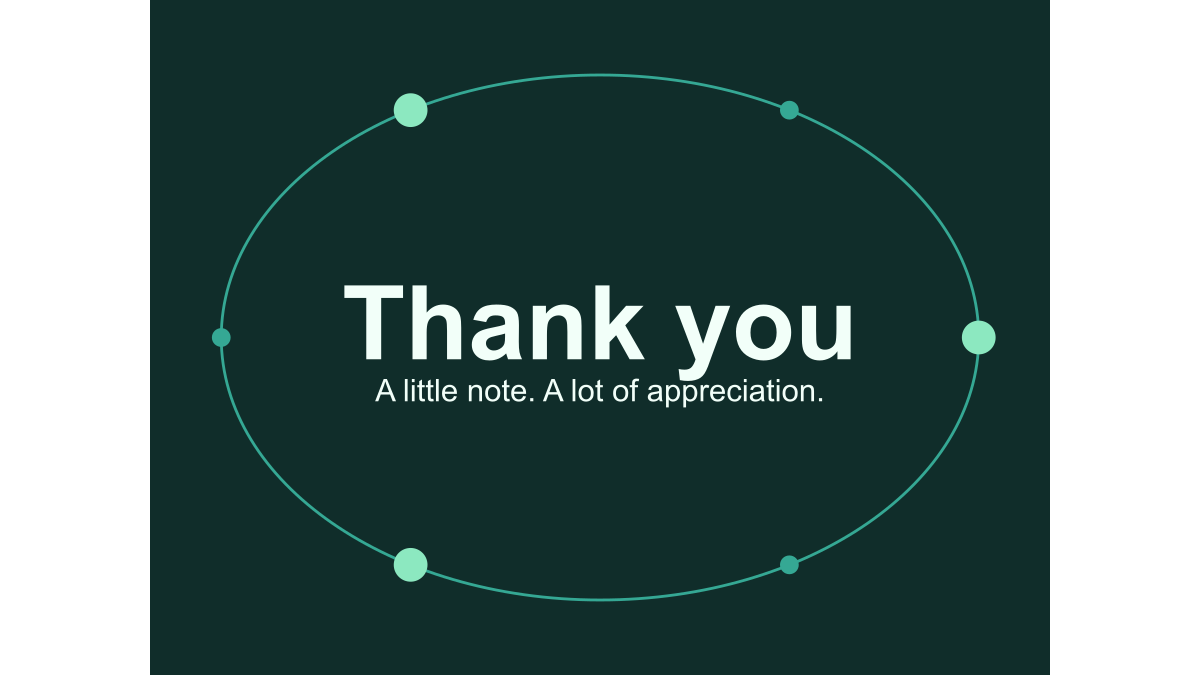
We used the downloadable thank-you greeting: a 480 × 360 GIF containing 24 image frames. Its original delay is 100 milliseconds per frame. On 24 October 2026, we made copies with a uniform delay of 50, 100 and 200 milliseconds using the same timing-editing function as the speed tool.
The function edits the delay fields in the existing file. It does not render a new picture, change the palette or compress the frames again. That matters when a creator wants to slow down movement without introducing a second round of colour changes.
Download the three versions
The GIF links can animate in your browser. Use the still image below if you do not want movement.
| Download | Delay per frame | Stored cycle | Frames | Exact bytes |
|---|---|---|---|---|
| Faster GIF | 50 ms | 1.2 seconds | 24 | 193,779 |
| Original-speed GIF | 100 ms | 2.4 seconds | 24 | 193,779 |
| Slower GIF | 200 ms | 4.8 seconds | 24 | 193,779 |
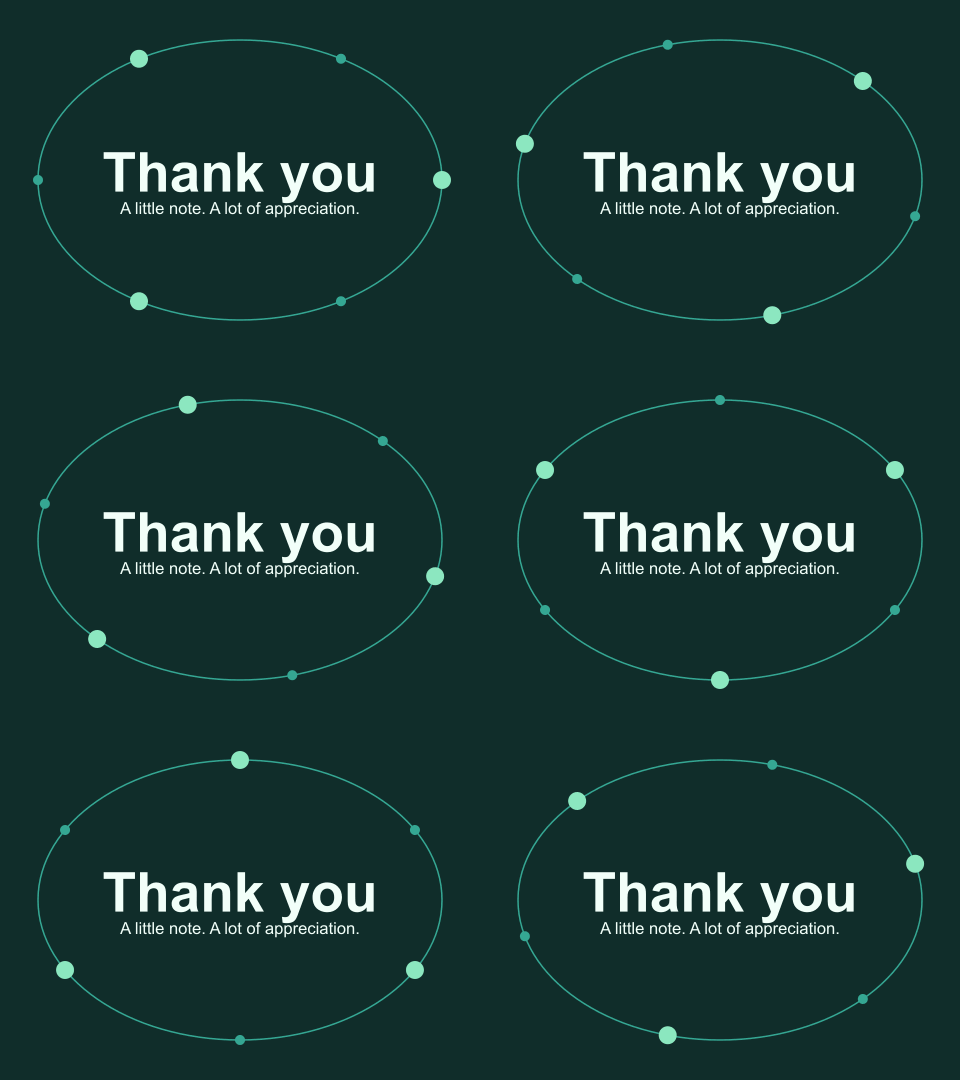
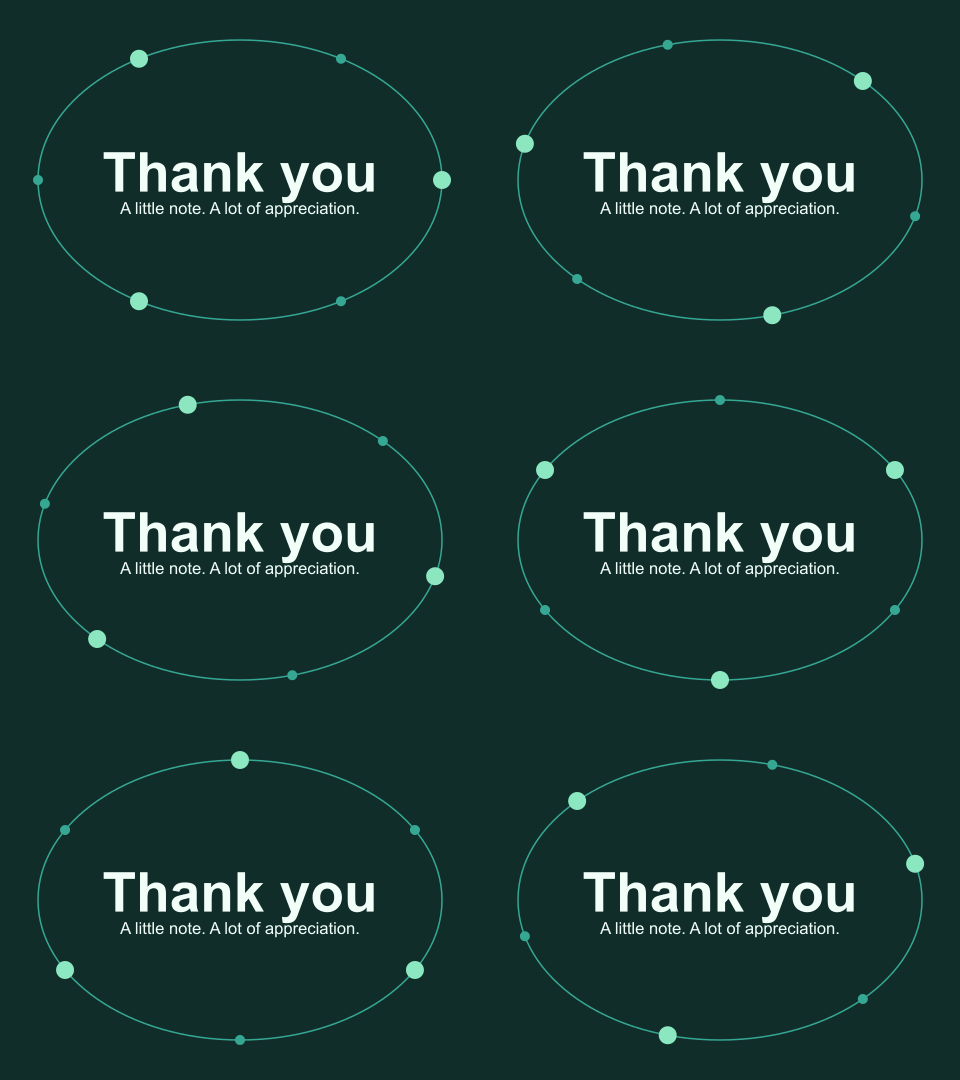
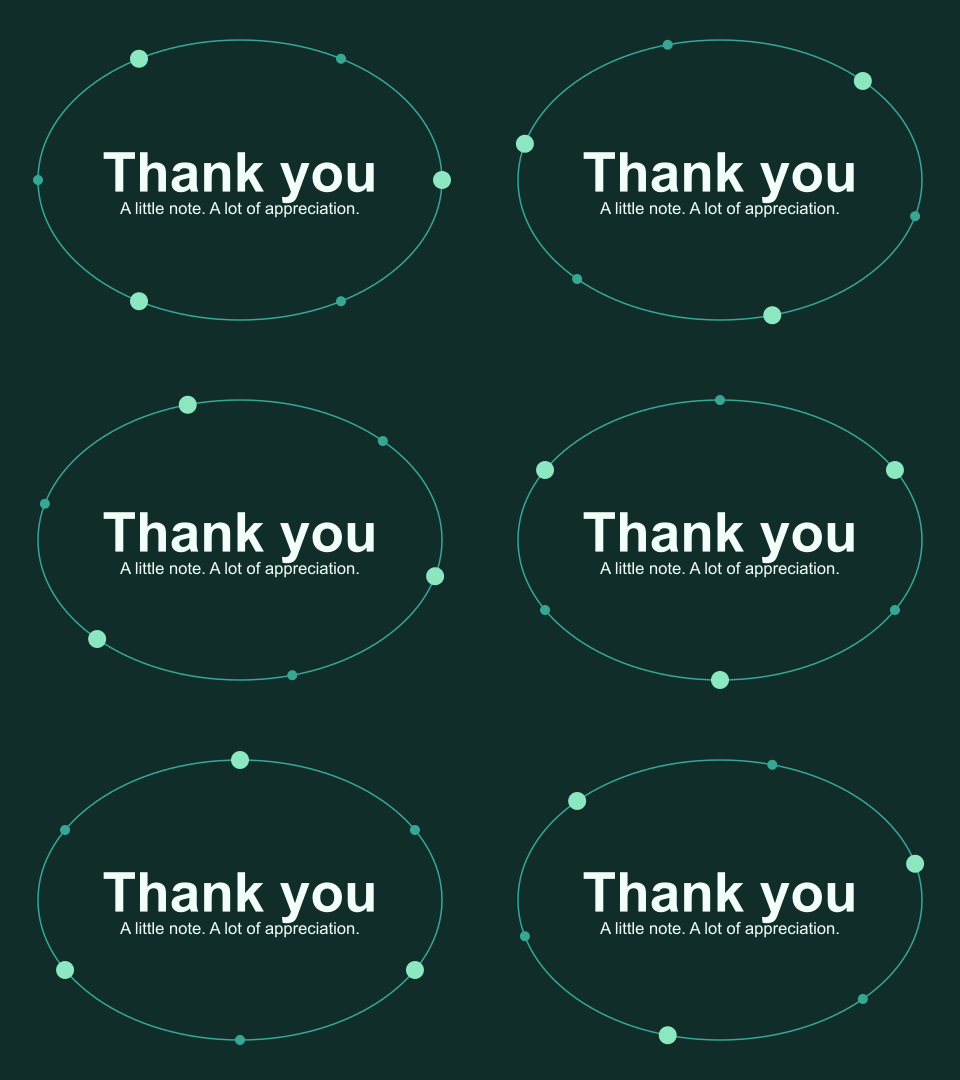
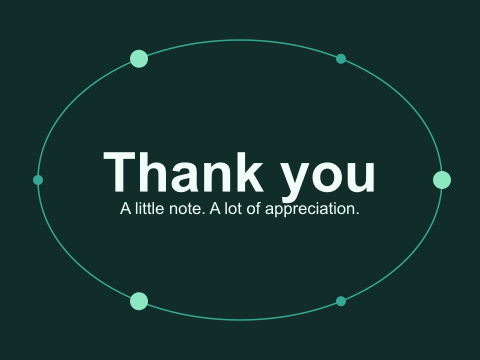
Each file retains the original instruction to repeat indefinitely. The table describes one cycle, not total playback time. It does not claim a measured speed in WhatsApp, a social platform or every browser.
How were the results checked?
We decoded the saved files with Pillow, separately from the JavaScript block parser used by the website. For each output we checked dimensions, counted frames, added the stored frame delays and compared a SHA-256 digest of every decoded RGBA frame with its counterpart in the original file. All 24 frame comparisons matched in all three outputs. The complete file hashes differ for the faster and slower versions because their timing bytes changed.
The measurement data identify the source, settings, frame delays and full-file SHA-256 digest of each download. These checks establish what is in these files; they do not certify the safety of an arbitrary uploaded GIF or predict a receiving application’s conversion.
Why did the slower file stay the same size?
The stored cycle is the sum of its delays. For a uniform delay, 24 × 200 ms = 4,800 ms. The original is 24 × 100 ms = 2,400 ms. The number of pictures is unchanged, and the delay fields occupy the same number of bytes at either setting. Slower playback therefore doubles the stored duration without doubling the download.
This differs from slowing a video by generating extra frames. It also differs from removing every second frame: dropping frames changes the image data and can make movement less smooth. If your goal is fewer bytes, use the file-size comparison to assess dimensions and still alternatives instead.
How do you change your own GIF?
- Open Change GIF speed and choose an animated GIF you have permission to edit, or select Try our 24-frame sample.
- Read the warning about replacing pauses. Enter a delay in milliseconds, in steps of ten. For the sample, 200 is a useful first comparison with the original 100.
- Select Create retimed GIF. Compare original and edited cycle duration, frame count, dimensions, bytes and loop instructions in the results table.
- Download the new GIF. Changing the delay afterwards clears the old download, so generate again before saving a different version.
- Open the saved file in the local inspector and then check it in the intended recipient app. Keep the original until you are satisfied.
Your own file is processed in the browser tab. Trying the sample fetches our published GIF. No account is needed and the tool does not upload the chosen file to a conversion service.
When does uniform timing give the wrong result?
Imagine a three-frame instruction with delays of 100, 100 and 1,000 ms. The final frame intentionally stays longer so someone can read it. Setting every frame to 200 ms makes the sequence last 600 ms and removes the reading pause. It is not a faithful half-speed version of the original 1,200 ms sequence.
Use this tool when you want an even pace. It does not offer proportional timing, individual frame editing or a freeze on the last frame. It rejects a single-image GIF because delay alone cannot create movement, and rejects plain-text rendering blocks rather than guessing how to retime them.
What can still differ after downloading?
The GIF format stores delays in hundredths of a second; our input uses milliseconds in steps of ten. The tool accepts 20–10,000 ms, but acceptance is not a guarantee that a browser will play every chosen delay exactly. An application can clamp short delays, skip frames under load or convert the upload to another format.
For files that lack timing controls, the tool inserts a control block before each affected image. That adds eight bytes per inserted block and can update the version label to GIF89a. Existing transparency, disposal settings and loop information are retained. A missing loop extension remains unspecified; it is not silently changed to infinite looping.
Technical reference: the GIF89a specification, Graphic Control Extension. For recipients who prefer less movement, see our motion and accessibility guide and send a still alternative with the same written message.
Related Articles
guides
One greeting, three layouts: compare real GIF downloads
Compare centered, portrait and postcard greetings using nine real GIF and PNG files, measured bytes and a repeatable browser workflow.
guides
Fix a GIF export: small text, missing downloads and still images
Troubleshoot this browser GIF maker with reproducible checks for small lettering, cancelled exports, stale files and animation that becomes still.
guides
Give readers control over an animated greeting
Use still previews, optional motion and meaningful surrounding text when sharing GIFs. See the concrete choices used in this collection.
Was this helpful?
Thanks for the feedback!